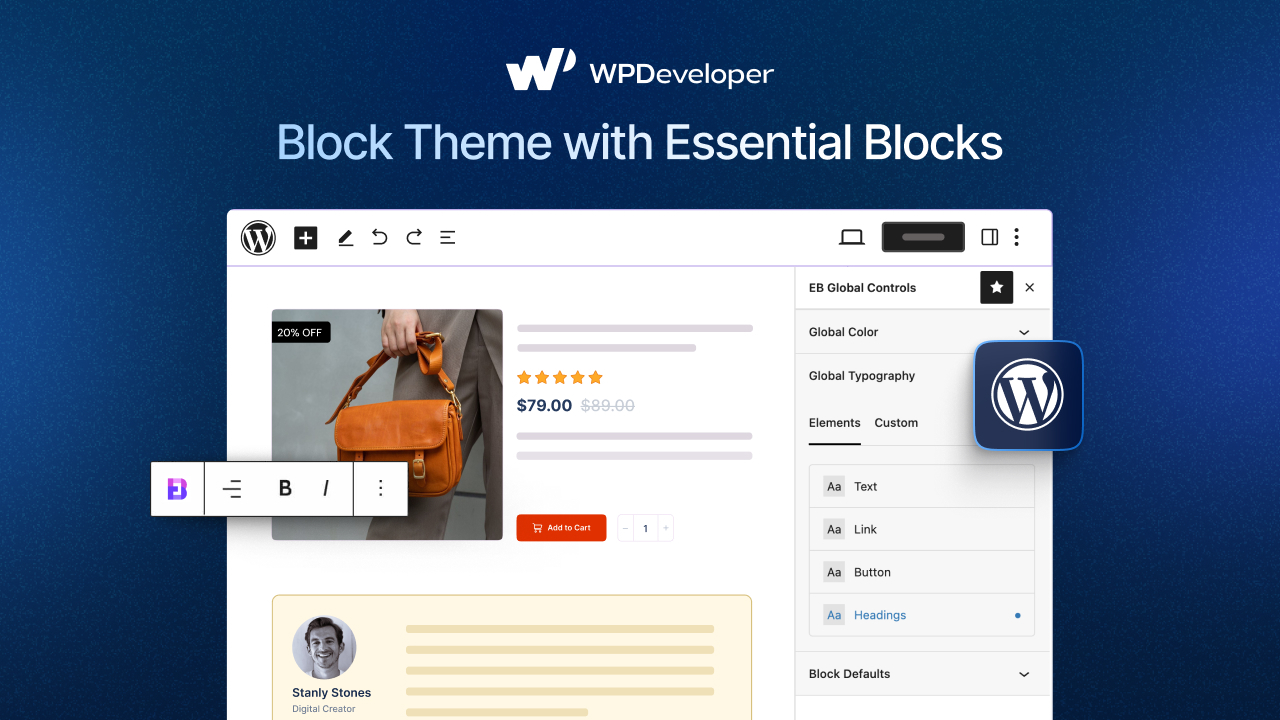
The way people build WordPress websites has changed dramatically. With Gutenberg and Full Site Editing (FSE), WordPress is no longer limited to editing only posts and pages; you can now design headers, footers, templates, archives and global styles inside a block-based workflow. That shift is exactly why more users want to learn how to build a block theme instead of relying on older, more rigid theme systems.
If you want a faster, more flexible, and more native way to create modern WordPress sites, block themes are the future. In this guide, you will learn what a WordPress block theme is, how to create one from scratch, how theme.json fits into the process and how Essential Blocks from WPDeveloper helps you build polished Gutenberg-powered sites without leaning too heavily on custom CSS or bulky page builders.
What Is a WordPress Block Theme?
A WordPress block theme is a theme built around blocks for every major site area, including the header, footer, content, templates, and reusable structural sections. Unlike classic themes, block themes are designed to work with the Site Editor and let you customize more of the site visually.
Understanding Full Site Editing (FSE)
Full Site Editing, or FSE, is WordPress’s block-based site-building experience. It allows you to edit templates, template parts, navigation, styles and page structures using blocks rather than depending entirely on PHP templates, widget areas, or the Customizer. In practical terms, it means you can design most of your site visually while still keeping a clean, native WordPress workflow.
With a block theme, the Site Editor becomes your central control panel. You can work with templates for pages like archives or 404s, manage template parts such as headers and footers, and adjust global styles across the site. This makes design decisions more consistent and easier to maintain.
Why Block Themes Are Becoming Popular
Block themes are gaining traction because they offer a lighter, more native building experience. Since WordPress itself handles the editing interface, users get visual control without always needing an external page builder. That often leads to better performance, smoother collaboration, and a more future-ready setup.
They also improve design consistency. With tools like global styles and theme.json, you can define colors, typography, spacing and layout presets once and apply them across the entire website. That is a huge advantage for freelancers, agencies, and site owners who want cleaner systems instead of one-off design decisions on every page.
Block Theme vs Classic Theme
Here is a quick comparison to understand where a Gutenberg block theme stands against a traditional WordPress theme:
FeatureBlock ThemeClassic ThemeCustomizationVisual editing through Site Editor, templates and stylesMostly via Customizer, widgets, menus and PHP filesPerformanceOften, a learner when built well and kept nativeVaries; often depends on theme framework and builder stackLearning CurveEasier for Gutenberg users, new for classic-theme usersFamiliar to long-time WordPress usersFlexibilityStrong visual control with templates and global stylesStrong developer control through PHP template filesDependency on Page BuildersLowerOften higher
This difference matters because block themes reduce the gap between design and development. You can still code when you need to, but you are not forced to code everything just to change layout structures.
Challenges Users Face While Building Block Themes
Even though block themes are powerful, beginners often hit the same roadblocks: complex layout creation, limited default Gutenberg blocks, inconsistent styling and mobile responsiveness issues. Core blocks are useful, but they can feel limiting when you want richer sections like advanced testimonials, pricing layouts, post grids, tabbed content, or stronger calls to action.
That is where Essential Blocks becomes practical. It extends Gutenberg with 70+ advanced blocks, responsive controls, templates, patterns, and modular performance settings, making it easier to create a custom block theme without overengineering the site.
Why Use Essential Blocks for Building a Block Theme?
If you want to create a block theme that looks professional without turning the project into a custom-code marathon, Essential Blocks gives you the missing design and layout tools that many users expect from a visual builder. It helps bridge the gap between native Gutenberg and real-world site building.
What Is Essential Blocks?
Essential Blocks is a Gutenberg toolkit. The plugin is positioned as a performance-focused library that adds 70+ advanced Gutenberg blocks, AI-assisted content and image features, ready patterns, template support, WooCommerce blocks and modular controls so you can activate only what you need.
That modular approach matters. One of the biggest concerns with builder ecosystems is bloat. Essential Blocks specifically highlights lightweight loading, instant editing, asset regeneration, and selective block enable/disable controls to help keep sites fast.
Essential Blocks Features That Help Build Better Block Themes
A solid WordPress FSE tutorial should not just explain files and templates; it should also help you design better pages faster. Essential Blocks supports that with advanced layout controls, per-block responsive customization, global typography and color control, ready-made patterns, dynamic content support, animation options, and WooCommerce-focused blocks for store layouts.
It also supports workflows that are useful when building real client sites: dynamic content blocks, template-ready sections, and professional UI components. Instead of trying to recreate every layout from raw Columns and Group blocks, you can assemble cleaner sections with far less friction.
Best Essential Blocks to Use in a Block Theme
Some of the most useful Essential Blocks choices when you create a block theme in WordPress include:
Container for flexible layout structure
Advanced Heading for consistent hero and section titles
Button for stronger CTAs
Testimonial or Testimonial Slider for social proof
Post Grid for blog, archive, and magazine layouts
Accordion for FAQs
Advanced Tabs for structured feature sections
Call To Action for marketing sections
Image Gallery for portfolio or showcase areas
Pricing Table or Multicolumn Pricing Table for plans
Team Member for agency or company pages
Social Icons for header/footer engagement
Why Essential Blocks Is Better Than Relying Only on Core Gutenberg Blocks
Core Gutenberg blocks are excellent for the foundation, but Essential Blocks gives you more design freedom and a faster workflow. You get more polished components, more built-in styling flexibility and less need for custom CSS to achieve agency-level layouts. That is especially helpful for users moving away from heavier page builders and looking for a lightweight Elementor alternative inside the native editor.
In short, Essential Blocks helps you stay inside Gutenberg while still producing layouts that feel complete, modern, and conversion-focused.
Prerequisites Before Building Your Block Theme
Before you start building, it helps to set up the right environment. A block theme can be simple, but the process gets much smoother when your install, plugin stack, and editor workflow are clean from the beginning.
What You Need Before Starting
To build a block theme from scratch, you should have:
A working WordPress installation
Basic familiarity with the Gutenberg editor
A starter block theme or blank theme setup if you want to move faster
Essential Blocks installed and activated
You do not need to be an advanced developer to begin. However, some comfort with WordPress structure and basic JSON formatting is useful because theme.json plays a major role in modern theme building.
Install Essential Blocks on Your Website
Installing Essential Blocks is straightforward:
Go to Plugins → Add New
Search for Essential Blocks
Install and activate the plugin
Enable only the blocks you actually plan to use
That last step is important. Essential Blocks promotes modular control, and keeping only the required blocks active is a smart way to maintain performance while building a responsive WordPress design.
Step-by-Step: Build a Block Theme from Scratch
Now let’s get into the actual workflow. This section shows how to build a practical custom WordPress theme using the block theme system and Essential Blocks.
Step 1 – Create Your Theme Folder Structure
At a minimum, WordPress needs style.css and templates/index.html to recognize a block theme. A typical structure also includes folders for templates, parts, patterns, and optionally styles, plus theme.json for global settings.
A clean starter structure may look like this:
my-block-theme/
├── parts/
│ ├── header.html
│ └── footer.html
├── patterns/
├── styles/
├── templates/
│ ├── index.html
│ ├── home.html
│ ├── single.html
│ ├── page.html
│ ├── archive.html
│ └── 404.html
├── functions.php
├── style.css
└── theme.json
This structure gives you a scalable starting point for templates, reusable site sections, and style variations.
Step 2: Configure theme.json
theme.json is the control center of a block theme. It lets you define global settings, styles, layout widths, typography, spacing presets, color palettes, and which design controls appear in the editor. WordPress applies those decisions both in the editor and on the front end.
A simple setup might include:
Brand color palette
Font families and heading sizes
Content width and wide width
Spacing scale
Button radius and link styles
For example:
{
“$schema”: “https://schemas.wp.org/trunk/theme.json”,
“version”: 3,
“settings”: {
“layout”: {
“contentSize”: “760px”,
“wideSize”: “1200px”
},
“color”: {
“palette”: [
{ “slug”: “primary”, “name”: “Primary”, “color”: “#5b5bd6” },
{ “slug”: “accent”, “name”: “Accent”, “color”: “#111111” },
{ “slug”: “base”, “name”: “Base”, “color”: “#ffffff” }
]
}
}
}
Once this is in place, your theme.json WordPress system becomes the backbone of your design consistency.
Step 3: Design the Header with Essential Blocks
Build your header inside a reusable template part, usually parts/header.html. Use the native Navigation block for menus, then enhance the layout with Essential Blocks components like Advanced Navigation Block, Buttons and Social Icons for branding and engagement.
For responsive headers, keep the structure simple: logo on the left, navigation centered or right-aligned, and a CTA or social links only if they support the goal of the site. Avoid cramming too many elements into the mobile header.
Step 4: Create the Hero Section
The hero section is where block themes start feeling modern. Use a Container layout, an Advanced Heading, supporting text and one or two CTA buttons. If the site needs a more polished look, add a background image or gradient carefully and only when it supports the message.
This is one area where Essential Blocks speeds things up significantly. Instead of stacking too many core blocks and tweaking spacing one setting at a time, you can build a strong above-the-fold section faster with better visual control.
Step 5: Build Content Sections
For your homepage or landing pages, create modular sections such as:
Services or feature highlights using Container, Icon and Heading combinations
Testimonials using Testimonial or Testimonial Slider
Pricing sections using Pricing Table layouts
FAQs using Accordion
Feature comparisons using Tabs or Data Table
Team areas with Team Member blocks
Your theme needs useful, reusable page sections and Essential Blocks provides many of the building blocks that make those sections easier to scale.
Step 6: Design Blog & Archive Templates
Create archive-friendly templates using the Query Loop or a richer Post Grid approach. If your site depends on content marketing, blog usability matters as much as homepage design.
Use Post Grid for clean layouts with featured images, categories, meta details, and consistent spacing. You can create archive templates, category views, and blog landing pages that look far more polished than a bare default loop.
Step 7: Create a Responsive Footer
Your footer should act like a closing navigation hub, not an afterthought. Add navigation links, contact info, Social Icons and a CTA if relevant, such as newsletter signup or consultation booking. Keep typography smaller but readable, and make sure spacing remains comfortable on mobile devices.
Using a footer template part also keeps the theme easier to maintain across all templates.
Step 8: Optimize Responsiveness
A great Gutenberg website builder workflow is not just about desktop design. Test mobile spacing, heading scale, block stacking behavior and visibility rules early. Essential Blocks explicitly supports device responsiveness controls, which help fine-tune layouts block by block instead of fighting generic breakpoints.
Practical checks include:
Reduce vertical spacing on smaller screens
Scale large headings more gently
Stack multi-column sections cleanly
Hide decorative elements when they hurt usability
Check tap targets for buttons and menus
Step 9: Improve Performance & Accessibility
To keep your responsive WordPress design fast and usable, enable only the blocks you need, compress images, maintain a clear heading hierarchy and ensure color contrast is readable. Those decisions improve both user experience and SEO.
Essential Blocks’ modular controls help here, but performance still depends on how you design the site. Lightweight sections, semantic structure and restrained effects will outperform bloated, over-animated layouts every time.
Best Practices for Designing Modern Block Themes
Building the theme is one thing; building it well is another. The best block themes are not the ones with the most effects. They are the ones that feel consistent, clear, and fast.
Keep Layouts Minimal & Fast
Modern WordPress design trends favor clarity, whitespace and purposeful sections. Minimal layouts are easier to scan, easier to make responsive, and easier to maintain over time. If every section is trying to be “special,” the site loses rhythm.
Use Global Styles for Consistency
Set your design system once and reuse it. Global palettes, typography scales, button styles and spacing presets reduce visual drift. This is one of the biggest strengths of theme.json and the broader Full Site Editing model.
Create Reusable Patterns
Reusable patterns help you build faster and maintain brand consistency. If you create a high-converting CTA section or testimonial band once, save it as a pattern and reuse it across the site. This is especially useful for agencies managing multiple pages or multiple client websites.
Avoid Overusing Animations
Animation should support attention, not distract from content. A few subtle interactions can improve polish, but too much motion hurts usability and performance. Use it where it adds meaning, not just decoration.
Design Mobile-First
Think about mobile early. Do not wait until the end to “fix” responsiveness. If the structure works on smaller screens first, the desktop layout usually becomes easier to refine afterward.
Common Mistakes to Avoid While Building Block Themes
Most block theme problems do not come from WordPress itself. They come from skipping fundamentals. If you avoid these mistakes, your build will be much cleaner.
Ignoring theme.json
If you skip theme.json, you lose one of the biggest advantages of block themes: centralized control over styles and editor settings. That usually leads to inconsistent design and more manual cleanup later.
Adding Too Many Plugins
A block theme should simplify your stack, not replace one kind of bloat with another. Use Essential Blocks strategically, activate only needed blocks and avoid overlapping plugins that duplicate the same design functions.
Not Optimizing for Mobile
Many layouts look fine on desktop but collapse awkwardly on phones. Always preview key templates and landing sections on multiple device widths before you call the theme finished.
Using Inconsistent Typography
Random heading sizes, mismatched paragraph spacing, and uncontrolled font choices make even a technically sound site feel unprofessional. Define your system once and stick to it.
Overcomplicating Layouts
If a section needs excessive nesting, too many wrappers, or lots of manual overrides, simplify it. Elegant structure beats visual complexity almost every time.
Real-World Use Cases for Custom Block Themes
A block theme is not just for tutorials or demos. It can power real client and business projects across many site types, especially when paired with a richer Gutenberg toolkit.
Business Websites
Corporate and service sites benefit from clean headers, trust-building testimonials, service sections, FAQs and conversion-oriented CTAs. Essential Blocks helps create these sections quickly without heavy page builder dependency.
Agency Websites
Agencies often need case studies, team sections, bold hero areas, pricing or process pages and consistent branding. Reusable patterns and advanced design blocks make agencies a natural fit for block-based workflows.
Portfolio Websites
Portfolios benefit from image galleries, project grids, testimonials and minimalist design systems. A custom block theme lets creatives build branded layouts without sacrificing speed.
WooCommerce Stores
Essential Blocks includes WooCommerce-focused blocks like product grid, product details, price, rating, images, carousel, and add-to-cart options, making it useful for store builders who want native Gutenberg eCommerce layouts.
Blogging Websites
Content creators can use Post Grid, archive templates, clean typography, and optimized reading widths to create better editorial experiences. For bloggers moving off page builders, this is one of the most compelling reasons to adopt a Full Site Editing theme.
Why Gutenberg + Essential Blocks Is the Future of WordPress Design
The direction of WordPress is increasingly block-based, and that matters for anyone building websites for the long term. Native tools tend to age better than workarounds, especially when the platform itself is evolving around them.
Native WordPress Experience
Block themes and the Site Editor are built into WordPress’s current direction. That means less friction between content editing, layout management, and design updates.
Better Performance Than Traditional Page Builders
While performance always depends on implementation, a carefully built Gutenberg setup with modular block activation can be leaner than older page-builder-heavy stacks. Essential Blocks explicitly supports lightweight loading and modular control, which aligns well with that goal.
Easier Collaboration for Teams
Editors, marketers, designers and developers can work more comfortably inside the same visual system. Templates, patterns and global styles reduce ad hoc page-level design decisions and make editorial workflows smoother.
Long-Term WordPress Compatibility
Since block themes are part of WordPress’s core evolution, investing in them is more future-facing than clinging to outdated workflows. For developers exploring FSE and users looking for a practical builder alternative, Gutenberg plus Essential Blocks is a strong path forward.
Start Building Your First Block Theme Today
Learning how to build a block theme is one of the smartest ways to modernize your WordPress workflow. You get a more native design experience, better control over templates and global styles, and a cleaner system for long-term site management. Once you understand the basics, theme structure, theme.json, template parts, and the Site Editor, you can create highly flexible websites without relying on bloated builder stacks.
And if you want to speed up the process while keeping the experience inside Gutenberg, Essential Blocks is the practical toolkit to reach for. It gives you advanced layouts, responsive controls, content-focused blocks, WooCommerce support, patterns, and design flexibility that make building a custom block theme much easier. If you are ready to move beyond classic themes or reduce your page builder dependency, this is the right time to experiment with a Gutenberg-first workflow. If you have found this blog helpful, feel free to share your opinion in the comment section or with our Facebook community. You can also subscribe to our blog for valuable tutorials, guides, knowledge, tips, and the latest WordPress updates.
Frequently Asked Questions
A block theme can feel like a big shift at first, so here are quick answers to the questions most users ask before making the move.
What is a WordPress block theme?
A WordPress block theme is a theme that uses blocks for all major site areas, including headers, footers, content, templates, and navigation. It is built to work with the Site Editor and Full Site Editing features.
Is Full Site Editing better than classic themes?
It depends on your workflow, but for many modern sites, yes. FSE offers more visual control, better use of global styles, and a more native editing experience. Classic themes still make sense in some legacy or highly custom PHP-driven setups.
Can beginners build a block theme?
Yes. Beginners can start with a simple structure and expand gradually. Knowing basic Gutenberg and understanding theme.json will make the process much easier.
Do I need coding knowledge to create a block theme?
Not always. You can do a lot visually with the Site Editor, but some basic knowledge of theme structure and JSON is helpful if you want to build from scratch or customize deeply.
Why should I use Essential Blocks instead of default Gutenberg blocks?
Because it gives you more layout options, richer content blocks, responsive controls, WooCommerce elements, templates, and patterns—while still keeping you inside the Gutenberg workflow.
Can I build WooCommerce websites with Essential Blocks?
Yes. The plugin includes WooCommerce-related blocks such as product grid, product details, price, rating, product images, and add-to-cart options.
The post How to Build a Block Theme from Scratch with Essential Blocks appeared first on WPDeveloper.
Leave a Reply