The PageSpeed report has been sitting in a browser tab for weeks. Render blocking resources, unused JavaScript, images in the wrong format. You know the fixes exist, and you also know that one wrong checkbox in a caching plugin can break a layout until a visitor mentions it.
xSpeed Cache closes that gap. It is the AI-native caching plugin from the WPDeveloper family and it ships with a built-in WordPress MCP server. Connect Claude or another AI assistant and you can ask for your cache status, run a benchmark, change a setting and test the result again without leaving the chat.
This guide covers what the xSpeed MCP server is, why xSpeed Cache is a solid caching plugin to build on, what your assistant can do once it is connected and how to set everything up with Claude. If MCP is new to you, our practical guide to using MCP with WordPress is a good warm up.
TL;DR
Short on time?
xSpeed Cache is a free WordPress caching plugin from WPDeveloper with page cache, object cache, browser cache, CDN support and database cleanup in one dashboard.
Its built in MCP server lets Claude, ChatGPT and other MCP clients read your cache status, run benchmarks and change settings through plain conversation.
Nothing is exposed until an administrator creates a connection. Each connection is read only or read and write and every action is logged.
Connecting to Claude takes four steps: open the MCP Server panel, pick a connection method, add the server in Claude and approve access.
Running more than one site? xSpeed Hub gives you one AI connection that reaches every site you attach.
You can get xSpeed Cache free from WordPress.org and connect your assistant today.
Why xSpeed Cache Is a Solid WordPress Caching Plugin
An AI assistant can only tune what the plugin gives it, so the quality of the caching plugin underneath matters first. xSpeed Cache earns that spot for a few practical reasons, and each one makes the MCP side more useful.
Caching That Works on Real Hosting
The page cache saves finished copies of your pages and serves them before WordPress has to rebuild anything. Around it sit an object cache for Redis or Memcached, browser caching for returning visitors and a preloader that warms your pages after every cache clear so nobody lands on a cold one.
It runs on Apache, nginx, LiteSpeed or any standard PHP host. If it detects a LiteSpeed server module, it steps back so the two do not cache the same page twice. When something cannot work on your setup, the plugin says so plainly.
One Plugin for Jobs Usually Split Across Four
Minification, defer and delay for JavaScript, lazy loading, font optimization, GZIP compression, CDN support and database cleanup all live in the same dashboard. That means fewer plugins arguing over the same files and one place to look when something changes.
Stores get sensible defaults too. On WooCommerce sites, cart, checkout and account pages are excluded from caching and logged in customers are served fresh pages, so one shopper never sees another shopper’s cart.
A Free Plan That Does Real Work
The free plugin is a working toolkit with no trial clock attached. Pro adds the heavier optimizations and the measurement layer on top.
Free: Page cache, object cache, browser cache, preloader, minification, lazy loading, CDN support, database cleanup, the MCP server and xSpeed Hub.
Pro: Critical CSS, Remove Unused CSS, WebP and AVIF conversion, Brotli compression, real user monitoring, an AI site audit and bring your own AI provider.
You can compare every feature side by side on the Free vs Pro page.
Trusted by a Growing Community
xSpeed Cache arrived on WordPress.org in August 2026, launched officially on 22 September 2026 and has already crossed 10,000 active installations. It comes from the same WPDeveloper team that more than 6 million WordPress users already trust. The plugin’s Coverage page collects reviews from independent publishers, and the built in MCP server and the generous free plan come up again and again.
Tip: Curious where your own site stands before you change anything? Run a free xSpeed Scan. It grades any URL from 0 to 100 in about a minute and needs no signup.
What Is the xSpeed MCP Server?
MCP stands for Model Context Protocol, an open standard that lets AI assistants talk to outside software. Think of it as a shared language. xSpeed Cache speaks it, Claude speaks it and so the two can work together without anyone building a custom bridge.
The xSpeed MCP server is built into the plugin and answers at your own site address, in the form https://your-site.com/xspeed/mcp. No third party sits between your AI client and your WordPress install. Once connected, your assistant can call the same actions the dashboard offers, such as checking your cache hit ratio, purging the cache, running a benchmark or changing a module setting.
Nothing works until an administrator switches it on by creating a connection. A fresh install exposes nothing by default.
Site MCP or Hub MCP: Which One Do You Need?
xSpeed offers two ways in. The Site MCP lives inside the plugin and connects an AI client to one site. The Hub MCP sits behind your free xSpeed Hub account and reaches every site you have attached through a single sign in, which is why the docs recommend it for anyone running more than one site.
Site MCP: best for one site, or for work the Hub does not expose such as database cleanup. It answers at https://your-site.com/xspeed/mcp and signs in with a token or OAuth.
Hub MCP: best for several sites through one connection. It answers at https://app.xspeedcache.com/xspeed/mcp and signs in with OAuth.
The rest of this guide walks through the Site MCP with Claude. The Hub path follows the same pattern and has its own Claude setup guide.
Why a WordPress MCP Server Inside Your Caching Plugin Makes Sense
Performance tuning mixes expertise with repetition, and that mix suits AI agents well. Three problems come up again and again when people tune WordPress by hand.
Settings Pages Assume Expert Knowledge
Which scripts can be deferred? Which cookies should be excluded from the cache? Which files are safe to combine? A wrong answer looks the same as a working site until a visitor reports the broken menu.
Tuning Never Really Finishes
A plugin update, a new page or a theme change can quietly shift your numbers. Nobody sits down every week to tune a site by hand again, so small regressions pile up unnoticed.
Chat Assistants Can Advise but Cannot Act
A general AI chat tool can tell you what to change. Without a real connection to your site it cannot see your settings, so you still click through every screen yourself.
The xSpeed MCP server closes that loop. Your assistant reads the real state of the site, applies a change you have approved, checks the result and reports back with what it did.
What the xSpeed MCP Server Can Do for Your Site
The connection hands an AI agent real control of a WordPress site, so the design leans hard on safety and visibility. Here is what you get.
Named tools for the jobs you do most: checking cache status, purging, benchmarking, changing module settings, cleaning the database and warming the cache.
A command bridge that reaches the rest of the xSpeed Cache command set, the same one WP-CLI uses.
One command optimization through the optimize_site tool, covered in detail below.
An access level on every connection. Read only means your assistant can look at everything and change nothing, and the server enforces it.
Two connection paths: a pasted connection token for clients such as Claude Code and Claude Desktop, or a one click OAuth sign in for clients that only need the server URL.
An activity log that records what ran, when, through which connection and whether it changed anything.
xSpeed Hub for fleets, so one AI connection reaches every attached site.
An AI Privacy and GDPR mode switch, free in the plugin, that controls what AI features may collect from your visitors.
How the One Command Optimization Works
The optimize_site tool turns a whole tuning session into a single request. It measures your site, applies the recommended settings one at a time, checks the page after each change and reverts anything that breaks.
You choose how bold it gets. The aggressiveness option accepts safe, standard (the default) or aggressive, and a dry_run option shows the plan without changing anything. Aggressive settings are never applied unless you ask. They come back as next steps with the risk of each one spelled out, and your assistant is told to check with you first.
Note: The built in check cannot run JavaScript and a per step revert is not a full site rollback. After any big change, open the site yourself and run a fresh speed test. The One-Command Site Optimization guide explains the limits in full.
How to Connect the xSpeed MCP Server to Claude
This walkthrough uses the Remote OAuth path, which means there is no token to copy and nothing secret sitting in your clipboard. Setup is short on a site that is already running xSpeed Cache.
Before you start, check three things. xSpeed Cache must be installed and active on your site. You need an administrator login. Your Claude plan must allow a custom connector, and the Free plan allows one. Claude reaches remote connectors over the internet, so the site needs a public address.
Step 1: Open the MCP Server Panel
From your WordPress dashboard, go to xSpeed Cache, open the AI & agents group and click the MCP Server panel. On a fresh install it shows Not connected along with four ready made connection formats. Pick your access level here too: read and write gives your assistant full control, and read only lets it inspect the site without touching anything.
Further down the same panel sits a shortcut to xSpeed Hub. If more than one site needs an AI connection, the Hub is faster because one connection reaches every attached site and you skip a separate token for each.
Step 2: Choose a Connection Method
The panel offers four formats, and the right one depends on the AI client you use. Here is what each one is for.
Claude Code (CLI): a single terminal command that registers xSpeed with Claude Code.
JSON config: for clients such as Claude Desktop that read a JSON block.
AI prompt: text you paste into a chat with an agent that can configure itself.
Remote (OAuth): for clients that only need the server URL and handle sign in themselves.
The first three put a token on screen for you to copy. Treat that token like a password, because anyone who holds it can control your site. Remote (OAuth) is the only format that shows no token at all, so it is the safest choice wherever your client supports it. Choose Remote (OAuth) and copy the server URL shown in the panel.
Once a connection exists, the panel turns green and shows Connected with Refresh, Rotate and Disconnect controls. Rotate issues a new token and kills the old one if you ever suspect a leak. Disconnect revokes every token and OAuth grant at once.
Step 3: Add the Server Inside Claude
In Claude, open Customize, go to Connectors and click Add custom connector. Name it xSpeed Cache and paste the endpoint URL you copied from the plugin.
Claude detects the authentication method on its own. For xSpeed Cache it shows Always required, because every MCP call needs an approved connection.
Leave No client ID, register one automatically selected unless you created a client ID by hand on the xSpeed side. Then scroll down and click Add.
Step 4: Approve Access and Run Your First Command
Claude opens a consent screen titled Connect to xSpeed. It names your site, confirms which WordPress account is signed in and states what is being granted. For a read and write connection that means permission to purge caches, toggle caching and change settings. Click Approve when it looks right.
The connector now appears under Customize, Connectors and Yours as a Web connector with a green checkmark.
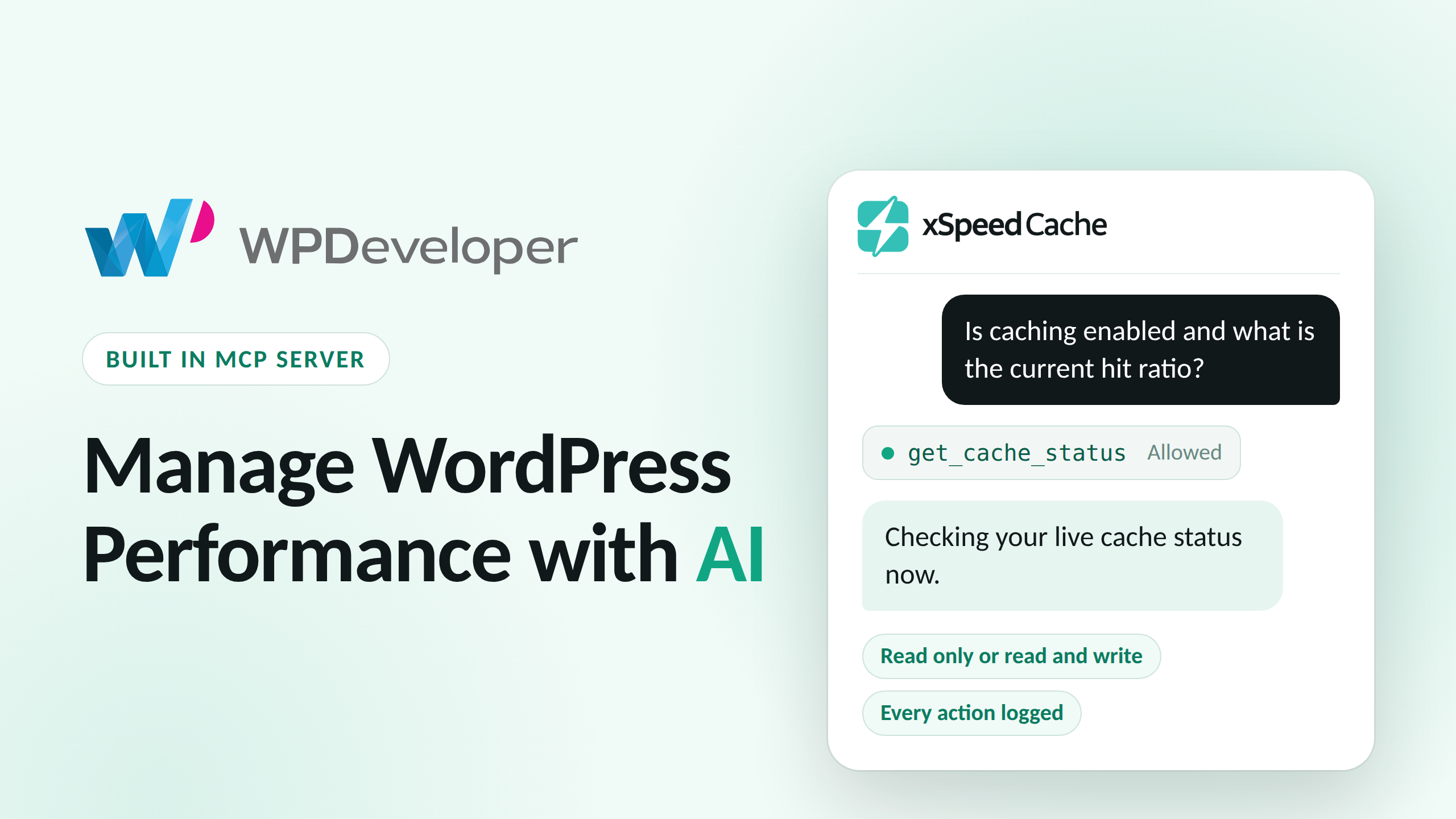
From here, any question about your site can trigger a real tool call. Try asking: “Is caching enabled and what is the current hit ratio?” Claude requests the get_cache_status tool and shows a permission card before it runs.
Choose Allow once or Always allow and Claude fetches the live numbers from your site and answers in plain language, with no dashboard tab involved.
Tip: If Claude does not use the connector in a chat, click + in the message box, choose Connectors and switch xSpeed Cache on for that conversation. The full details live in the MCP server setup guide and in Claude’s own help article on custom connectors.
Prompts to Try First
Your first few prompts should read before they write. That builds trust in the connection and shows you what your assistant can see. The prompts below are a good starting set, and the tool each one is likely to call is listed beside it.
“Is caching enabled and what is the current hit ratio?” Likely tool: get_cache_status. Changes nothing.
“Run a benchmark on my home page and show me the timings.” Likely tool: run_benchmark. Changes nothing.
“Which modules are active and what are the minify settings?” Likely tools: list_modules and get_settings. Changes nothing.
“Scan my database for bloat but do not delete anything.” Likely tool: scan_database. Changes nothing.
“Run optimize_site as a dry run and show me the plan.” Likely tool: optimize_site. Changes nothing.
“Purge the page cache and start the preloader.” Likely tools: purge_cache and start_preloader. Changes your site.
The Tools Your AI Assistant Can Call
The tool catalog is split into two kinds. Read tools only look at your site. Write tools change something: they purge, toggle, clean or save settings. A read only connection can call read tools and nothing else.
GroupExample toolsWhat it coversLook at statusget_cache_status, list_modules, get_settingsCache state, hit ratio, last purge, modules and their settingsRun measurementsrun_benchmark, run_pagespeed, get_pro_auditBefore and after timings, PageSpeed and Core Web Vitals (Pro), and the Pro features that fit your siteTune settingsoptimize_site, update_settings, toggle_cacheEnd to end tuning, module settings and turning page caching on or offClear and warmpurge_cache, start_preloader, flush_object_cache, purge_cloudflarePage, asset and object caches, the Cloudflare edge cache and cache warmingClean the databasescan_database, clean_databasePreview bloat first, then clean the categories you enabledUse any commandlist_commands, run_commandA bridge to every registered xSpeed Cache command
The exact list depends on your plugin version, the modules you have active and your license, and a few tools such as generate_critical_css need Pro. Some tools only appear when the module behind them is switched on, so you never see an option that would always fail. The MCP tool reference always shows the current catalog.
Warning: clean_database deletes data. It removes whatever categories are enabled in your Database module settings, so run scan_database first and read what it would remove. The run_command tool always counts as a write tool, which means a read only connection cannot use it at all.
Who Gets the Most Out of the xSpeed MCP Server?
The xSpeed MCP server suits anyone who wants WordPress performance handled without learning caching terminology first. Whether you look after one blog or forty client sites, the work turns into a conversation.
Here is how each type of user can put the xSpeed MCP server to work:
UserHow the xSpeed MCP server helpsSite owners without a technical backgroundSay “make my site fast” and let the assistant measure, fix and confirm the resultWordPress agenciesConnect once through xSpeed Hub and check every client site from one chatDevelopersCall purge_cache and start_preloader from an MCP client after a release, or script the same jobs with WP-CLICautious adoptersStart read only, let the assistant diagnose and recommend, then grant write access when you trust itTeams with privacy requirementsCheck AI Privacy and GDPR mode before turning on any AI featureFreelancers on a scheduleLet Hub monitoring flag a problem, then ask your assistant to benchmark and fix it
Real Ways to Use the xSpeed MCP Server
These scenarios show how the tools combine in day to day work. Our use cases library covers 37 industry stories if you want more, and the AI agents page goes deeper on this workflow.
Make It Fast, Literally
A site owner who has never heard of TTFB connects Claude and says the sentence. The optimize_site tool measures the site, applies safe settings one at a time, checks the page after each and reverts anything that breaks. You ask for the after benchmark and a list of what changed.
A Weekly Tune Up Nobody Has to Remember
Sites drift after plugin updates and heavier pages. Hub monitoring checks every attached site daily and can alert you through Slack or email when caching is switched off or the hit ratio falls below a floor you set. When an alert lands, you ask your assistant to benchmark that site and fix what it finds.
Fresh Cache After Every Release
Each deployment leaves stale pages behind. Calling purge_cache and start_preloader after a release clears the old copies and warms the new ones, so the first visitor after launch gets a fast page.
Starting in Read Only Mode
A cautious team connects with read only access and asks the assistant to benchmark and recommend. They review the suggestions for a week or two, then grant write access once the advice has proven sound.
Checking Thirty Sites in One Conversation
An agency connects once through xSpeed Hub and asks: “Show the cache hit ratio for every site and flag anything under 70%.” The assistant lists every attached site, reports the numbers and points to the ones that need work. For a deeper look at this workflow, read our write up on managing caching across client sites with Claude.
Adopting AI Features Without a Privacy Surprise
Before you switch on anything AI powered on a site with EU visitors, open the AI Privacy and GDPR mode panel. With the consent switch on, AI features only record data after a visitor accepts your consent banner.
How to Get the Best Results from the xSpeed MCP Server
The connection works best when its access level matches the trust your assistant has earned and when your requests say exactly what should happen next. These habits keep a live site safe while you get the most out of it.
Start with the Right Access Level
You do not need write access on day one, and a live business site is a good reason to wait. Connect read only first and review a few benchmark and recommendation runs. Switch to read and write once the suggestions have proven reliable.
Ask for a Before and After
Every tuning session should start with a benchmark so you have a clear first number. Let the assistant change one thing at a time, then ask for a second benchmark and a plain summary of what changed.
Use xSpeed Hub When You Manage More Than a Few Sites
A single Site MCP connection covers one site. Attach every site you manage to one Hub account, connect your AI client to the Hub once and ask for a fleet wide benchmark. Fix only the sites that fall below your target. The Hub scoped connections guide explains how to give each connection exactly the access it needs.
Check the Site Yourself After Big Changes
Server side checks cannot catch everything a browser would. After a large change, load the front end, click through your most visited pages and run a fresh speed test or xSpeed Scan.
Think Twice Before Using Claude Research
Anthropic notes that Research mode can call connector tools without further approval. If you plan to use Research with this connector, block the write tools first, as the xSpeed docs advise.
Start Managing WordPress Performance with AI Today
A fast WordPress site should not depend on knowing what TTFB or Core Web Vitals stand for. With the xSpeed MCP server you connect once, ask for a faster site and watch your assistant measure, apply and confirm the result while every action stays logged.
Ready to try it? Get xSpeed Cache free from WordPress.org, open the MCP Server panel and connect your assistant. If you run several sites, start with xSpeed Hub. Want to see the Pro side as well? Check the Pro plans and keep an eye on the changelog for new releases.
Was this blog helpful? Do not forget to subscribe to our blog for more WordPress guides and join our Facebook Community to share your thoughts with other WordPress creators.
Frequently Asked Questions
Is the xSpeed MCP server free?
Which AI assistants work with the xSpeed MCP server?
Is it safe to let an AI change my caching settings?
Do I need xSpeed Hub to use the MCP server?
What happens if my connection token leaks?
Can the assistant delete my data?
The post WordPress MCP Server: Manage Performance with xSpeed Cache first appeared on WPDeveloper.
Leave a Reply